Syncing Jobber to Google Calendar
Are any of you time blocking people? Well I'm an aspiring time blocking person and I just learned I can have Chat GPT do it for me instead of me slaving away on google trying to get everything dialed. What I realized was my tasks in jobber would have to get synced to google manually and that's super annoying. Wait - turns out Jobber quietly solved this and I didn't realize. I made a video showing yall how to sync you site visits, jobber tasks etc right on your calendar. https://www.loom.com/share/601da88e9b77434c84f7fa17ead4963c Hopefully that's helpful!43Views3likes1Comment
Looking for a jobber consultant/expert
My septic company recently invested in Jobber as a means to move away from endless paperwork and redundant data entry. We use software like Quickbooks Online, Filemaker Pro, and CompanyCam. Anyone who can help us integrate our work and migrate our data into jobber and train me would be greatly appreciated!246Views1like2CommentsHome Depot Pro Referral Integration ?
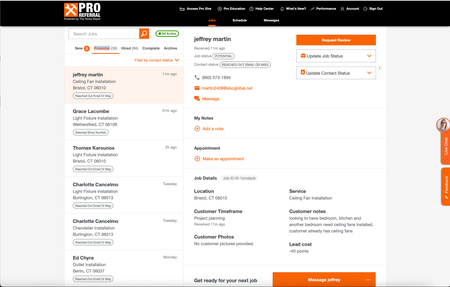
Good afternoon, I know a lot of contractors are listed for Home Depot Pro Referral - and I was wondering if Jobber has had the ability to directly integrate with them. Since using jobber, I have had my office manager transfer every contact over, one by one, because it didnt allow us to track stats/communication within home depots crm. So I was wondering what do you all use ? Or is it all manual for you too? If you want to check it out - here is the link Try Home Depot Pro263Views1like5Comments
Customize Jobber with ADI, SAS, ect Catalogs
Hi, We recently noticed that Jobber now offers Home Depot as a catalog option, which has been a great addition and very helpful for our team. We are wondering if it is possible to add additional supplier catalogs, such as ADI, LiftMaster, SAS, S&SI, and similar vendors, in the same way the Home Depot catalog is integrated. Since our company specializes in security systems, gates, and access control, having catalog options from suppliers within this industry would be extremely beneficial when creating quotes and managing materials. Does anyone know if this functionality is currently available, or if there are plans for Jobber to expand catalog integrations to include other suppliers? This would be a valuable feature for companies working in specialized trades like ours.187Views2likes2Comments
Thoughts with OpenPhone?
Hi! We currently using Ooma as our soft phone as it's integrated with Jobber. Unfortunately, only almost 2 months in and we're experiencing a lot of issues including missing voicemail and poor syncing of call logs. We recently notified about new softphone VOIP integration with Open Phone. Does anyone already using it? What's your experience so far? Your response is much appreciated!202Views4likes1CommentCrew Insight | New KPI Dashboard in Jobber app marketplace
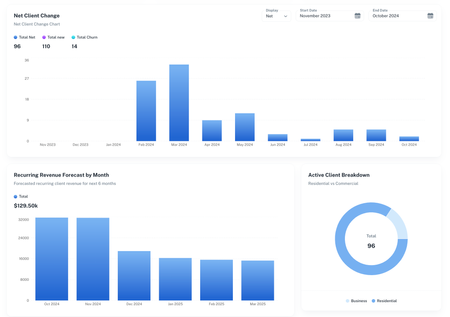
Hi All! I run a lawn care and gardening business and have struggled with getting all the KPIs I need from Jobber. I've had to spend many hours each month crunching numbers on spreadsheets that could have been spent growing my business. To solve this, I created a software platform that would pull in data from Jobber automatically and give me the numbers I need. Seems like KPI tracking is a common pain point amongst community members so I thought I’d create a post to start the conversation. What KPI’s are you obsessed with? What KPI’s feel hard to track? What metrics are you struggling to improve? If anyone is interested in the software, its called Crew Insight and we recently got it published to the Jobber marketplace so you can find it there or, at crew-insight.com.843Views5likes7Comments