Looking for a jobber consultant/expert
My septic company recently invested in Jobber as a means to move away from endless paperwork and redundant data entry. We use software like Quickbooks Online, Filemaker Pro, and CompanyCam. Anyone who can help us integrate our work and migrate our data into jobber and train me would be greatly appreciated!42Views0likes1CommentThoughts with OpenPhone?
Hi! We currently using Ooma as our soft phone as it's integrated with Jobber. Unfortunately, only almost 2 months in and we're experiencing a lot of issues including missing voicemail and poor syncing of call logs. We recently notified about new softphone VOIP integration with Open Phone. Does anyone already using it? What's your experience so far? Your response is much appreciated!64Views4likes1CommentHome Depot Pro Referral Integration ?
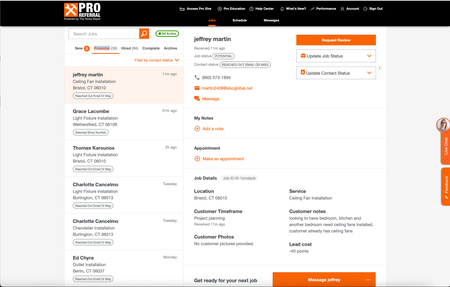
Good afternoon, I know a lot of contractors are listed for Home Depot Pro Referral - and I was wondering if Jobber has had the ability to directly integrate with them. Since using jobber, I have had my office manager transfer every contact over, one by one, because it didnt allow us to track stats/communication within home depots crm. So I was wondering what do you all use ? Or is it all manual for you too? If you want to check it out - here is the link Try Home Depot Pro57Views1like1CommentNotifications Service For GetJobber Entities
I am creating a new Jobber integration called JNotify. The JNotify allows you to sync the data and set up notifications by email, sms and slack. The notifications could be sent to the client, team members or any email. The right person should get the right notification at the right time for business process improvement. I am imagining the following types of notfications are possible with this JNofity. But, it is entirely configurable based on the user needs. - When a visit is completed and the job value is > x, then email the owner and the manager - When a payment is created and amount > x, then email the accounts receivable and owner - When a 'Request' is created with emergency keywords like urgent, 'no heat', flooding, then email to manager, dispatcher - When a high value job is deleted, notify the owner. Your feedback is highly appreciated ! The following Jobber entities can synced to JNotify based on the activity in the Jobber. When a client is created When a client is deleted When a client is updated When an expense is created When an expense is deleted When an expense is updated When an invoice is created When an invoice is deleted When an invoice is updated When a job is closed When a job is created When a job is deleted When a job is updated When a on my way tracking link is requested When a payment is created When a payment is deleted When a payment is updated When a payout is created When a payout is deleted When a payout is updated When a product or service is created When a product or service is deleted When a product or service is updated When a property is created When a property is deleted When a property is updated When a quote is approved When a quote is created When a quote is deleted When a quote is sent When a quote is updated When a request is created When a request is deleted When a request is updated When a timesheet is created When a timesheet is deleted When a timesheet is updated When a visit is completed When a visit is created When a visit is deleted When a visit is updated36Views0likes0CommentsCrew Insight | New KPI Dashboard in Jobber app marketplace
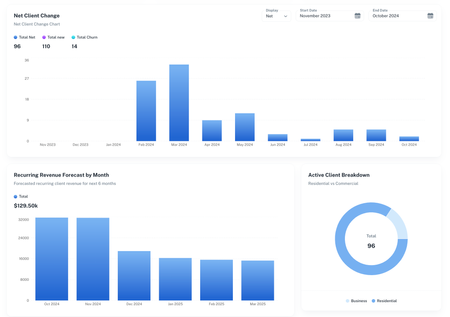
Hi All! I run a lawn care and gardening business and have struggled with getting all the KPIs I need from Jobber. I've had to spend many hours each month crunching numbers on spreadsheets that could have been spent growing my business. To solve this, I created a software platform that would pull in data from Jobber automatically and give me the numbers I need. Seems like KPI tracking is a common pain point amongst community members so I thought I’d create a post to start the conversation. What KPI’s are you obsessed with? What KPI’s feel hard to track? What metrics are you struggling to improve? If anyone is interested in the software, its called Crew Insight and we recently got it published to the Jobber marketplace so you can find it there or, at crew-insight.com.525Views5likes7CommentsQuickbooks Deposits Not Matching Invoices
Heres the problem: We send a quote out, it requires a 25% deposit. Jobber collects the deposit, quickbooks registers the payment, but with NO invoice # since an invoice has not been completed. Once the job is complete, an invoice is issues. The data is not matching and recording properly in quickbooks. How do I make quickbooks work efficiently with jobber while using deposits with my customers?70Views1like3CommentsAngi Ads Integration
Has anyone set up the API Integration with Angi Ads? I was provided the steps below but I'm unclear how to follow them properly and was wondering if anyone familiar with Jobber here would know and/or have had success. In order to set up your API Integration with Angi, you will need to have the following information gathered: Your account's Company ID. This is not always the same as your Service Provider ID that you see next to your company name in the Angi for Pros site. You can find your Company ID in the URL of your desktop Angi for Pros site, on the top right of your Angi Ads Agreement, labeled SPID, or by reaching out to us in chat. The email address you would like to connect to your CRM Your unique webhook URL (provided by your CRM contact) Authentication Type (key or no key) Data Format (most commonly JSON, but your CRM contact will know for sure) The Standard Lead API Requirements that will be needed for set up are shown here in more detail. Angi_Standard_Lead_API_Requirements1.pdf Once you have this information gathered, you can start the setup for your API Integration, using the steps below: Log into the Angi for Pros site on your desktop. Once logged in, open a new tab in your browser and type in the following URL: Note: The area where you see XXXXXX in the URL is where you will place your Company ID from the information gathered above. For example, if your account's Company ID is 123456, the URL should be -https://office.angi.com/app/webhooks/123456/leads/configure https://office.angi.com/app/webhooks/XXXXXX/leads/configure Once you've typed in that URL, you should see this screen, where you will click Get Started. From here, fill in the blanks on the Edit Configuration page with the information you gathered in the first section above, then click Next. Remember, you should still be logged into your Angi Ads Business Center during this setup process. Note: If your Authentication Type requires a key, a second drop-down will appear to ask you to type in the key. Please do not share this key in chat or via email, as it is a private security key for your company only. Now it is time to test your configuration. Click on Send Test Lead in the middle of the page. A blue box should appear at the top of your screen confirming that test lead was successfully sent to your URL. Once you receive the confirmation box, click Next at the bottom of the screen. If you do not receive the confirmation box below, please take a screenshot of the message you received for troubleshooting purposes and feel free to start a chat with us for assistance! You're almost done! Click the Save and Activate button at the bottom of the screen to complete the integration process. You're all finished, and your integration has been completed. From here you can close out of this tab. Your webhook will receive a copy of each new lead as it is generated! If you have more than one account that needs to be set up, just follow all of the steps again, making sure you are logged into the account you are setting up, and be sure to replace the Company ID in the URL in Step 2.20Views1like0Comments