How Do I Tag a Group in Jobber and Know Who’s Seen the Note?
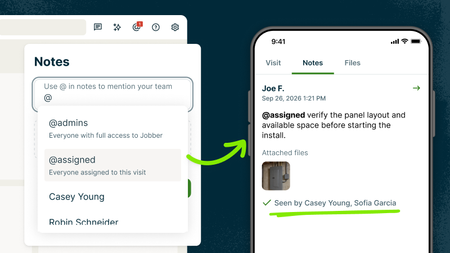
The gate code changed and everyone assigned to the job needs to know. Or maybe a client has a billing question that one of your admins needs to handle. Instead of tagging people one at a time (or playing phone tag), use group @mentions to notify the right people at once. @assigned notifies everyone assigned to that visit. Example: “@assigned Gate code changed to 4821. Use the side entrance.” @admins notifies every admin on your account. Example: “@admins Client wants to push their invoice due date. Can someone handle it?” You can use group @mentions in notes on clients, requests, quotes, jobs, visits, and invoices. Everyone in the group gets notified, and read receipts show you exactly who’s seen the note, so you know the update got through. 📖 Learn more 🎥 Watch it in the Jobber Now announcement Team @mentions is available on the Plus plan How does your team pass along updates today—notes, group texts, phone calls, something else?19Views0likes1CommentWelcome to the Jobber Now 2026 Q&A Board!
👋 We hope you're excited for all the BIG new updates from Jobber! 🚀 This is your dedicated spot to ask any questions you have about the new features we announced. Use the 'Start Discussion' button on the main Q&A board to post your questions. Our Product Team is ready to jump in with answers and tips. To get things rolling, ➡️ we’d love to hear which update you’re most excited about. ⬅️ Hit 'Reply' on this post to comment! P.S. If you missed the event, you can catch the replay here: https://www.youtube.com/watch?v=O2UAm-MlJ-M 📹1.1KViews2likes26Comments