How Do I Build a Custom Report in Jobber Without Hiring Someone or Using Spreadsheets?
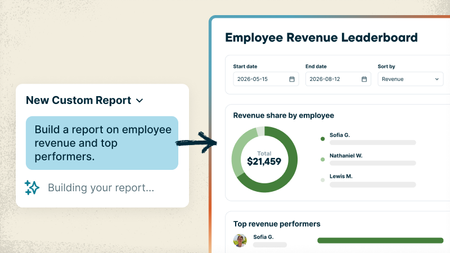
Every service business tracks things a little differently, and sometimes the answer you need is spread across different places in Jobber. Maybe you want to see which customers haven’t booked again this year, which neighborhoods bring in the most recurring revenue, or which jobs ran over their estimated hours. Getting answers that specific usually means exporting reports, digging through spreadsheets, or paying someone to build the report for you. With the new Custom Report Builder, you just type what you want to see and Jobber AI builds the report from your real numbers, with charts included if you want them. And unlike the standard reports, which only look at one area at a time, a custom report can pull data from across Jobber into one place: quotes, jobs, invoices, timesheets and more. What that looks like: Ask it like you'd ask your office manager. Something like "Show me revenue and labor hours by job type for the last 6 months" or "Which clients bring in the most revenue compared to the hours we spend on their jobs?" Need a change? Just say so. "Add a column for profit," "only show the previous 3 months." It updates and saves the report for you. Pulls from everything from across Jobber. Data from quotes, jobs, invoices, timesheets and more can live together in one report, so you can see the bigger picture without jumping from one report to the other. That's something the standard reports can't do. Save it and check back anytime. Reports live on your Custom Reports page and refresh with your latest numbers. Your team's permissions stay the same, so nobody sees what they shouldn't. Custom Reports are available on the Plus plan 🏗️ Build your first custom report 📖 Learn more 🎥 Watch it in the Jobber Now announcement What's the first report you'd build? Post your prompt below. Might give someone else a good idea!164Views0likes2CommentsHow Do I Automatically Log My Expenses in Jobber?
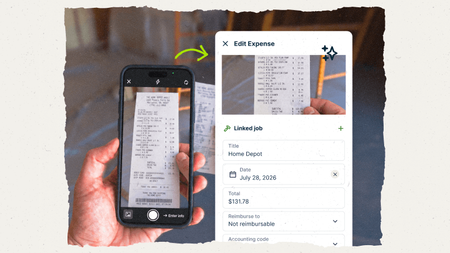
Keeping up with material costs can be a pain. Receipts get left in the truck, supplier invoices pile up in your inbox, and by the time you’re checking job costs, you’re trying to remember what went where. Jobber now gives you two ways to get those expenses in without typing everything out yourself. It pulls in the details, helps get costs onto the right job, and keeps your job costing up to date. (If you use Jobber Bookkeeping, those expenses flow into your books too!) Snap a pic of the receipt Your guys grab materials at the store, take a photo of the receipt in the Jobber app, done. Jobber reads it and creates an expense entry complete with all the details filled in for you. You or an admin give it a quick look and attach it to the job. Your most recent active jobs show up first, so it's quick to find the right one. It tracks who made the purchase, so dealing with reimbursement is easy. 📖 Learn more about Receipt Capture Add supplier invoices to Jobber You can get supplier invoices into Jobber in two ways: Upload or drag and drop them into Jobber: great for bulk uploads. If a PDF contains multiple invoices, Jobber separates them for you. Send them by email by forwarding them yourself, setting up auto-forwarding, or giving suppliers and subcontractors your unique Jobber email address Once the invoice is in Jobber, it reads the details and creates the expense for you. If it finds a matching job number, it links the cost to that job automatically. If not, you can quickly match it during review. 💡Pro tip: When you send a purchase order to a supplier, use the Jobber job number as the PO number. That PO number can carry through to the invoice, helping Jobber match the expense to the right job automatically. 📤 Upload invoices ✉️ Set up email forwarding 📖 Learn more about Supplier Invoice Scanning Receipt Capture and Supplier Invoice Scanning are available on the Plus plan 🎥 Watch it in the Jobber Now announcement How are you keeping track of material costs right now? Curious what's working for you folks!38Views0likes0Comments
Would you pay $25/mo for job profit reports without upgrading your plan?
Hi all, I keep seeing the same thing in here and in reviews: owners on Core and Connect want to know which jobs and clients actually make money, what's booked for next week in dollars, and what got cancelled. Right now that means upgrading to Grow or Plus, or exporting to Excel or Power BI and cleaning the data every week. I'm a developer thinking of building a small add-on that connects to Jobber (read-only) and gives you: - Profit per job and per client (revenue minus labour, materials and expenses) - Projected revenue per day and week - A report of cancelled and unscheduled work and what it was worth - A Monday email with last week's numbers and who's overdue It would work on every plan for about $25/month. Before I build it, I want to know if it's worth it to you. If it is, add your email here: https://tally.so/r/RGXo49. The first 20 businesses get it free for 3 months in exchange for feedback. And if you'd tell me what report you'd want first, reply below. I read every one. Not affiliated with Jobber, just trying to build something useful. Ben Humphries106Views0likes2CommentsHow to correctly use job profitability/costing
Hi all, Just a question about the job profitability calculations - I think I'm doing something wrong... At the moment I have recurring jobs setup with a base price for ongoing garden maintenance. We get requests for extra work, so this is added to the invoice, based on the extra labour and materials supplied for that visit. But the costing data is pulled from the job line items, not the invoice total so the revenue isn't accurately shown. What extra steps should I be doing to keep the costing accurate? Does the added work (and revenue) need to be added as a new/updated line item to the visit for that job? Keen to keep the costing accurate and make good use of it, but it seems like it requires some double handling? Thanks for any info/tips!Solved280Views1like1Comment