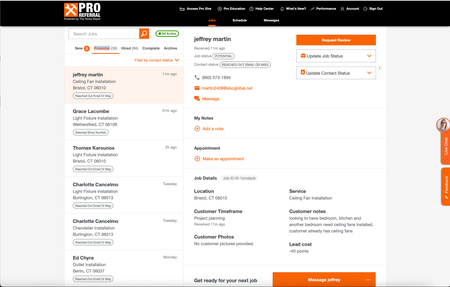
Home Depot Pro Referral Integration ?
Good afternoon, I know a lot of contractors are listed for Home Depot Pro Referral - and I was wondering if Jobber has had the ability to directly integrate with them. Since using jobber, I have had my office manager transfer every contact over, one by one, because it didnt allow us to track stats/communication within home depots crm. So I was wondering what do you all use ? Or is it all manual for you too? If you want to check it out - here is the link Try Home Depot Pro286Views1like5Comments
Quo & Jobber and some other question...
I would like to speak with someone who is using both Quo and Jobber. I am coming back to Jobber from Housecall Pro and wanted to confirm a few things, I'd love if I can have an actual conversation with a pro using the system daily. Quo related questions: In my current system I am able to both text and call from the same number. It seems that I won't be able to do that with Jobber, but I am thinking that the number Jobber provides for texting I will use just for "system generated messages and marketing" and our Quo number for calling customers and texting them to discuss proposals, etc. Is anyone doing anything similar? Do calls and texts from Quo show up on Jobber? Other system questions in case someone is able to assist: We service generators and it's important for us to track service agreements as well as equipment details. How are these being handled in housecall? Most of our jobs are multi day installs with inspections and work thrown in between. Is that easy to handle in Jobber? How is the price book? Am I able to categorize items by brand or any other method? What is everyone's opinion on websites created within Jobber? Thanks!!76Views1like1Comment
Weather Widget 🌞🌧️❄️🔥
Is it possible to integrate Jobber with a weather app? On the dashboard, we were thinking a 7-day forecast could be visible. Also, I thought a small temperature reading on the monthly calendar would be visible. We also thought the weather for the day could be captured and saved as an internal note for the job.Solved477Views5likes9CommentsBusiness Phone Number - Who's Should You Use and How Should You Use it?
When it comes to phone numbers, I treat the Jobber phone number as an “automation line,” not my primary business number. I use it for all the built-in Jobber automations—invoice/receipt texts, appointment reminders, “on my way” notifications, and anything else Jobber sends out automatically. It’s great for consistent system messaging and keeping those operational texts separate from my real day-to-day communication. The reason I don’t use the Jobber number as my main public-facing number (website, trucks, yard signs, etc.) is ownership and portability. The Jobber number can’t be ported out, so if you ever switch systems or change your setup, you don’t truly “own” that number long-term. I’ve made the mistake of putting a non-portable number on marketing before, and it’s a headache when you realize it can’t follow you. Instead, I recommend your primary business number be something you control and can port—either from a carrier, Google Voice (depending on your needs), or another platform where portability is confirmed. Then use tools like Chiirp (and I haven’t personally explored GoHighLevel/Hatch deeply, but they’re in the same category) for your primary communication + higher-level automation, because those platforms typically offer much more robust automation like out-of-office replies, drip campaigns, and automated texting workflows. So my personal setup philosophy is: Jobber number = system/operations messaging only; your “real” business number = portable, owned by you, and used everywhere customer-facing. Then if you need advanced automations like out-of-office replies, I’d build those in a dedicated communication/marketing platform that’s designed for it—not inside the Jobber number.1.1KViews9likes18CommentsPersonal Phone Number Vs. Business Phone Number?
As I continue growing my cleaning business, I’ve been thinking more about whether it’s better to use my personal phone number or set up a separate business line. Right now, I handle most communication directly, which makes things simple—but I’m starting to see how it can blur boundaries between work and personal life, especially with calls and messages coming in at all hours. I’m curious how others have handled this as they’ve grown. Do you use your personal number for your business, or did you switch to a dedicated business line? If you made the switch, at what point did it feel necessary? Have you noticed a difference in professionalism or client trust with a business number? What systems or apps do you recommend for managing calls, texts, and voicemails efficiently? How do you set boundaries with clients regarding response times or after-hours communication? For those managing a team, how do you handle incoming calls—do you delegate or keep it centralized? I want to make sure I’m building systems that will grow with my business while still staying responsive and professional. Would love to hear what’s worked (and what hasn’t) for you!228Views1like4Comments
Have you used OneStepGPS in Jobber?
Just got a demo of OneStepGPS. I'm looking for a fleet tracking system and integrating with Jobber sounds great. BUT They couldn't run a demo of it in Jobber, didn't have screenshots, really couldn't tell me anything about how it integrates beyond "you'll see everything in Jobber" Anybody have this, can you share how it works, maybe some screen shots? @JobberDevelopers One of the other programs I looked at is on the ball and wants to integrate with Jobber. Get your team talking to Fleet Complete!366Views1like2Comments
Phone integration
I love that jobber has it's own phone number I just wish we had the ability to integrate with a business VOIP system so we can call clients from the Jobber app and it calls from our ringcentral business number instead of our cell phone numbers. Right now we have to type it directly into our ringcentral app which can be annoying trying to remember the number or switching between apps to get the number. I do not want customers having everyone's cell phone number. It would be amazing to click on the customers phone number and it asks which app or automatically uses the intergrated voip app.163Views1like1CommentGo High Level Vs Chiirp
Hey Guys! Anyone have an opinion on these two programs vs each other? I feel like chiirp is kind of over priced and hard to use. I've been hearing good things about High level. Anyone have an opinion on it? Or even better, has anyone used both and have an opinion on the matter?200Views1like2Comments