Syncing Jobber to Google Calendar
Are any of you time blocking people? Well I'm an aspiring time blocking person and I just learned I can have Chat GPT do it for me instead of me slaving away on google trying to get everything dialed. What I realized was my tasks in jobber would have to get synced to google manually and that's super annoying. Wait - turns out Jobber quietly solved this and I didn't realize. I made a video showing yall how to sync you site visits, jobber tasks etc right on your calendar. https://www.loom.com/share/601da88e9b77434c84f7fa17ead4963c Hopefully that's helpful!43Views3likes1Comment
Customize Jobber with ADI, SAS, ect Catalogs
Hi, We recently noticed that Jobber now offers Home Depot as a catalog option, which has been a great addition and very helpful for our team. We are wondering if it is possible to add additional supplier catalogs, such as ADI, LiftMaster, SAS, S&SI, and similar vendors, in the same way the Home Depot catalog is integrated. Since our company specializes in security systems, gates, and access control, having catalog options from suppliers within this industry would be extremely beneficial when creating quotes and managing materials. Does anyone know if this functionality is currently available, or if there are plans for Jobber to expand catalog integrations to include other suppliers? This would be a valuable feature for companies working in specialized trades like ours.187Views2likes2Comments
Looking for a jobber consultant/expert
My septic company recently invested in Jobber as a means to move away from endless paperwork and redundant data entry. We use software like Quickbooks Online, Filemaker Pro, and CompanyCam. Anyone who can help us integrate our work and migrate our data into jobber and train me would be greatly appreciated!246Views1like2CommentsHome Depot Pro Referral Integration ?
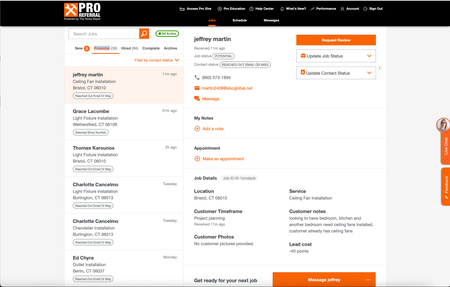
Good afternoon, I know a lot of contractors are listed for Home Depot Pro Referral - and I was wondering if Jobber has had the ability to directly integrate with them. Since using jobber, I have had my office manager transfer every contact over, one by one, because it didnt allow us to track stats/communication within home depots crm. So I was wondering what do you all use ? Or is it all manual for you too? If you want to check it out - here is the link Try Home Depot Pro263Views1like5Comments
Angi Ads Integration
Has anyone set up the API Integration with Angi Ads? I was provided the steps below but I'm unclear how to follow them properly and was wondering if anyone familiar with Jobber here would know and/or have had success. In order to set up your API Integration with Angi, you will need to have the following information gathered: Your account's Company ID. This is not always the same as your Service Provider ID that you see next to your company name in the Angi for Pros site. You can find your Company ID in the URL of your desktop Angi for Pros site, on the top right of your Angi Ads Agreement, labeled SPID, or by reaching out to us in chat. The email address you would like to connect to your CRM Your unique webhook URL (provided by your CRM contact) Authentication Type (key or no key) Data Format (most commonly JSON, but your CRM contact will know for sure) The Standard Lead API Requirements that will be needed for set up are shown here in more detail. Angi_Standard_Lead_API_Requirements1.pdf Once you have this information gathered, you can start the setup for your API Integration, using the steps below: Log into the Angi for Pros site on your desktop. Once logged in, open a new tab in your browser and type in the following URL: Note: The area where you see XXXXXX in the URL is where you will place your Company ID from the information gathered above. For example, if your account's Company ID is 123456, the URL should be -https://office.angi.com/app/webhooks/123456/leads/configure https://office.angi.com/app/webhooks/XXXXXX/leads/configure Once you've typed in that URL, you should see this screen, where you will click Get Started. From here, fill in the blanks on the Edit Configuration page with the information you gathered in the first section above, then click Next. Remember, you should still be logged into your Angi Ads Business Center during this setup process. Note: If your Authentication Type requires a key, a second drop-down will appear to ask you to type in the key. Please do not share this key in chat or via email, as it is a private security key for your company only. Now it is time to test your configuration. Click on Send Test Lead in the middle of the page. A blue box should appear at the top of your screen confirming that test lead was successfully sent to your URL. Once you receive the confirmation box, click Next at the bottom of the screen. If you do not receive the confirmation box below, please take a screenshot of the message you received for troubleshooting purposes and feel free to start a chat with us for assistance! You're almost done! Click the Save and Activate button at the bottom of the screen to complete the integration process. You're all finished, and your integration has been completed. From here you can close out of this tab. Your webhook will receive a copy of each new lead as it is generated! If you have more than one account that needs to be set up, just follow all of the steps again, making sure you are logged into the account you are setting up, and be sure to replace the Company ID in the URL in Step 2.75Views1like0Comments
Thoughts with OpenPhone?
Hi! We currently using Ooma as our soft phone as it's integrated with Jobber. Unfortunately, only almost 2 months in and we're experiencing a lot of issues including missing voicemail and poor syncing of call logs. We recently notified about new softphone VOIP integration with Open Phone. Does anyone already using it? What's your experience so far? Your response is much appreciated!202Views4likes1Comment
Gmail, Outlook Add-on and GetJobber Integration proposal
Dear Community, I am in the process of identifying integration work for Jobber and I have identified my first. Let me know if the following proposal sounds valuable for your business. Do field service professionals spend significant time communicating with clients via email? Getjobber currently lacks native Gmail and Outlook integration, unlike other CRM competitors who are moving toward email integration CRMs like HubSpot, Salesforce, and Zoho have proven the value of Gmail integration Proposed Potential Features Customer Context Panel: Display Getjobber customer info in the Gmail sidebar when viewing client emails Job Creation: Create jobs directly from client emails with one click Email-to-Job Logging: Automatically record important emails to job history Scheduling: Add appointments to the Getjobber calendar from email conversations Business Value Time Savings: Field service businesses could save 5-10 hours weekly by eliminating context-switching Improved Response Time: Faster client communication with contextual information readily available Data Accuracy: Reduced manual data entry between email and Getjobber Customer Experience: More professional, coordinated communication with clients262Views2likes2Comments